All your studying,
one single app.
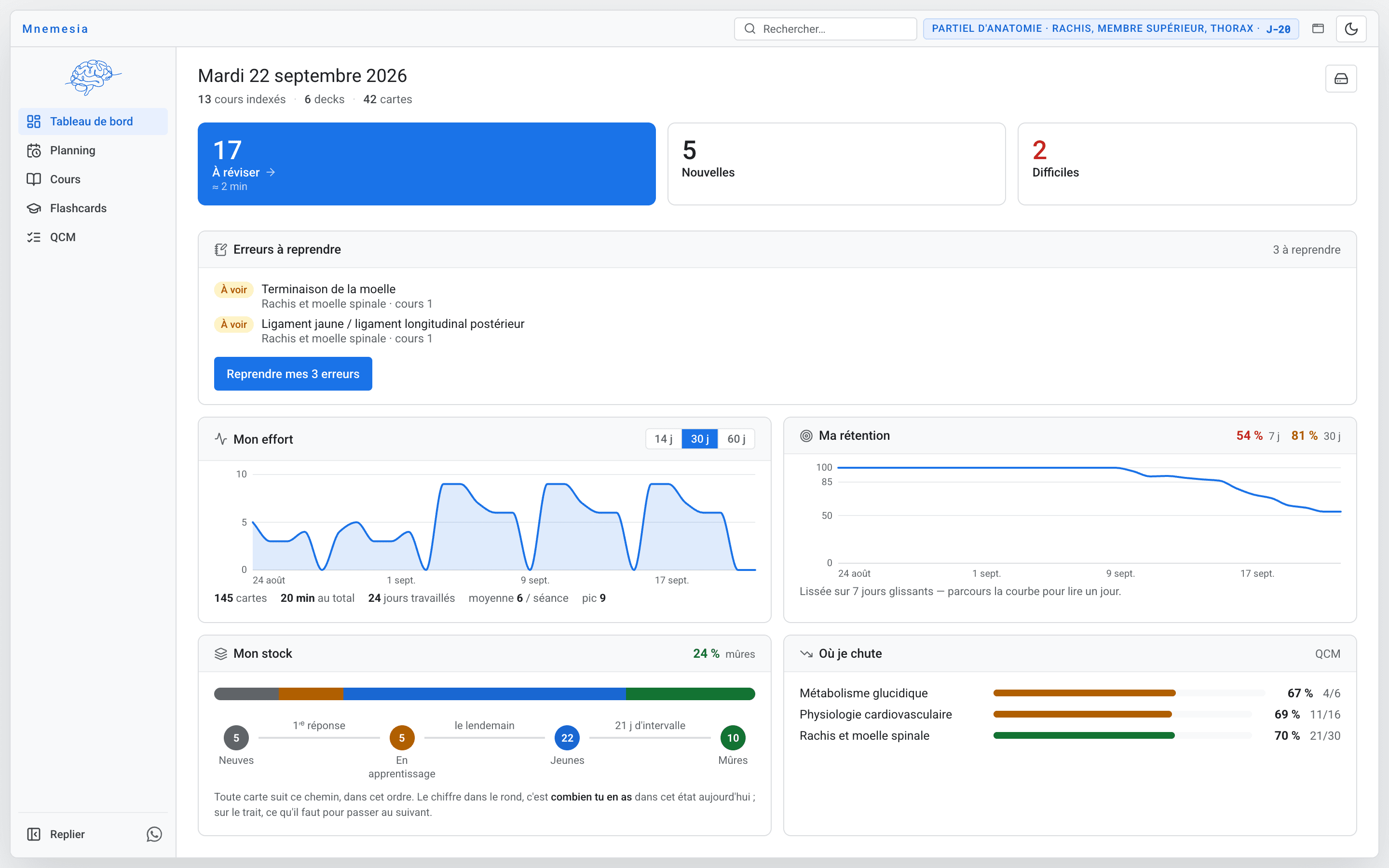
Anki-style flashcards, your courses organized as in Notion, your annotated PDFs, timed multiple-choice quizzes and a study planner. Free, no account, offline.


Free, nothing to work around · Apple silicon (M1 to M4) or Intel Mac, macOS 10.15 or later
The App Store still has version 1.0.5 while Apple reviews the update. Version 1.0.6 is in the file to download.
A question? Two answers.
The guide answers most of them. For the rest, there’s WhatsApp: Mnemesia’s creator and its users answer there.
Start with the guide.
15 pages on the screens of version 1.0.6: installing, organizing your courses, annotating, reviewing, taking MCQs. The guide is in French.
The WhatsApp community.
Mnemesia’s creator and its users help each other there: a question, a bug, a missing feature, and announcements of new versions. The community chat is in French.
Your phone number is visible to the other members.
Your handouts, annotated.
Highlight, write with a pen or an Apple Pencil, add a sticky note, crop an image to turn it into a card. Even a scanned handout becomes searchable.
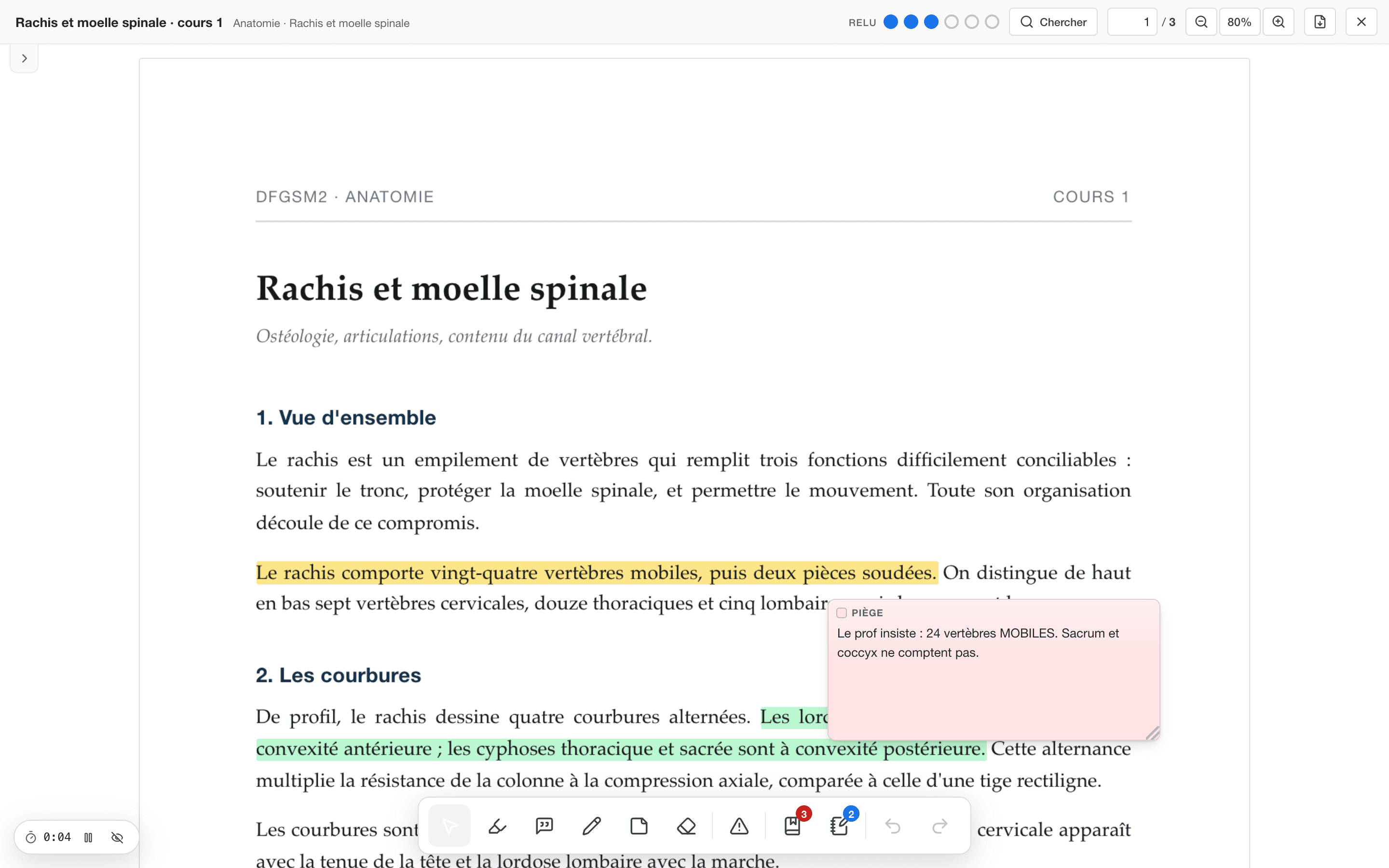
Cards that come back at the right time.
Anki-style spaced repetition, with import of your .apkg decks. Cards are made from the handout, without leaving the course.
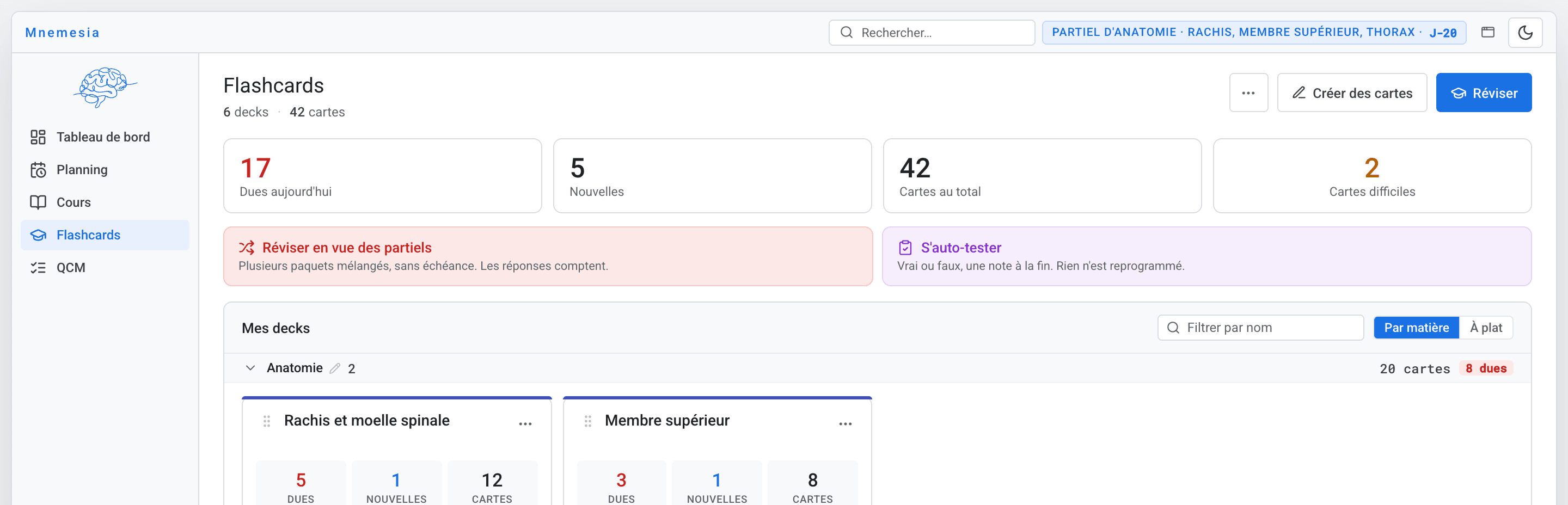
MCQs, just like exam day.
Timed practice sets and mock exams, with detailed answers and a list of the questions you missed.
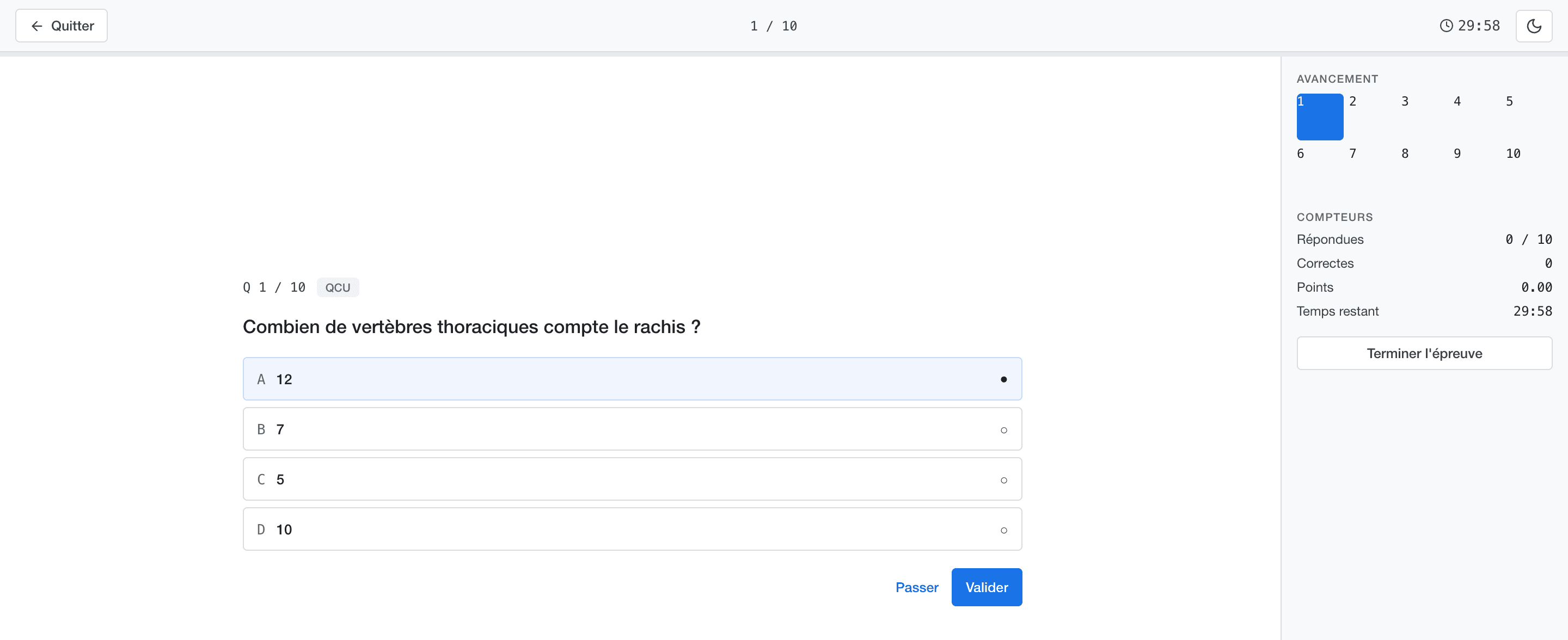
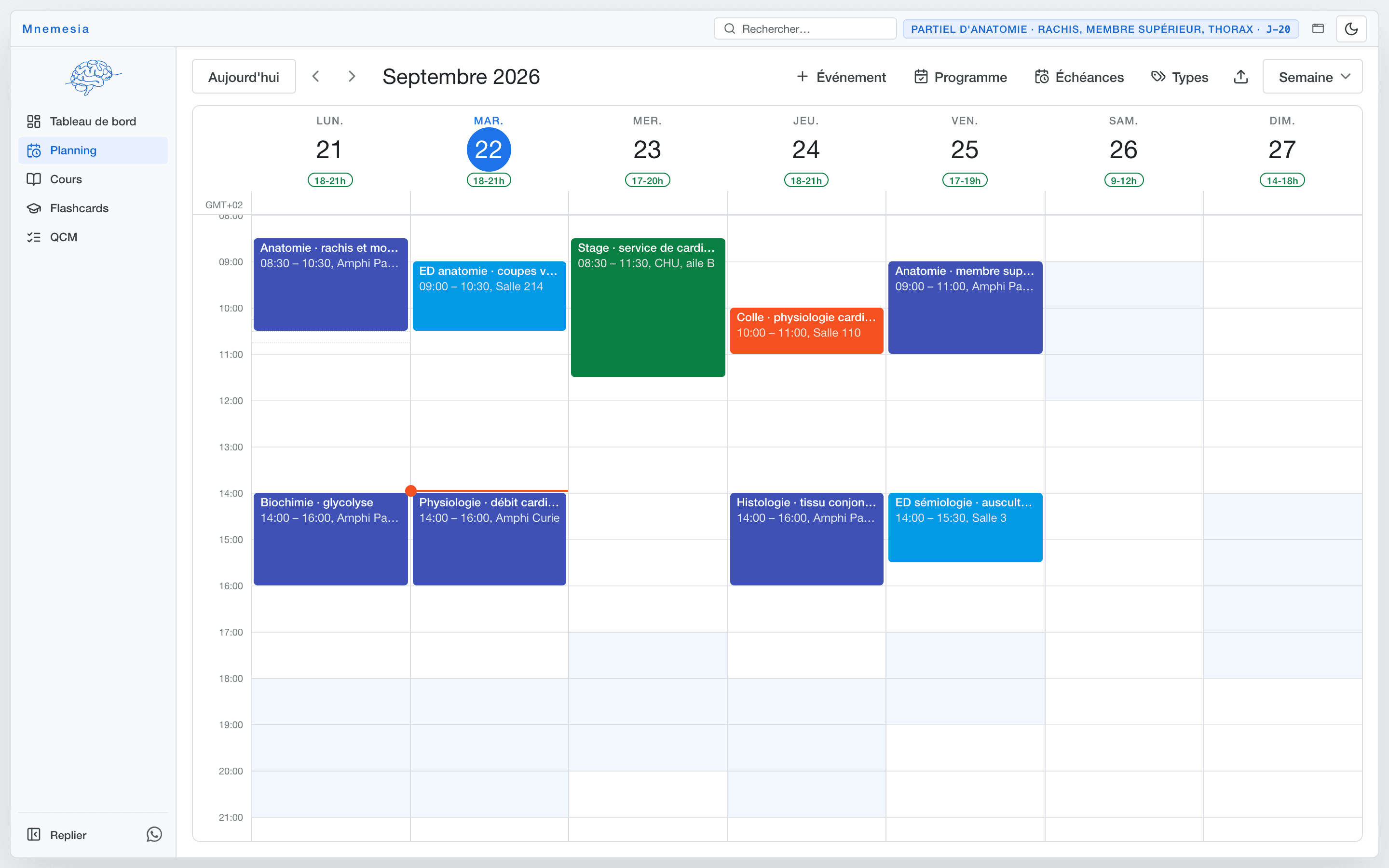
A planner that knows your exams.
Your university timetable imports as an .ics file, your deadlines go on it, and the study workload spreads over the days that remain.
Everything stays with you.
No Mnemesia server, no school account, no content to upload. The app opens and works without the internet.
Nothing leaves your device
Handouts, cards and answers stay on the device. No account, no session to sign in to: the app talks to no server, and none of your work leaves your device.
Your folder is your copy
No copy on a Mnemesia server. On the Mac and iPad versions from the App Store, you can turn on iCloud: the folder then goes through your own account, and both devices stay in sync. Elsewhere, losing the Mnemesia folder means losing what is in it.
So back it up: Time Machine, an external drive, or a copy of the folder from time to time.
Updates, depending on where you got it
From the App Store, on Mac and iPad, they arrive on their own. There is nothing to keep an eye on.
Elsewhere, each fix comes as a new version to download from this page. Installing it over the previous one does not touch your data: it lives in your folder, not in the app.
Download Mnemesia.
The same software on all your devices, free. Version 1.0.6.
On the App Store, nothing to work around
Apple silicon (M1 to M4) or Intel Mac, macOS 10.15 or later
Apple has reviewed it: it installs like any other app, opens right away, and its updates arrive on their own.
The App Store is still on version 1.0.5 while Apple completes its review. The file below is up to date: it’s version 1.0.6.
Or the file, outside the store: 20.3 MB · version 1.0.6 · Apple silicon (M1 to M4) or Intel Mac, macOS 13 or later. With this file, macOS will refuse to open the app the first time you launch it: it doesn’t come from the Mac App Store. One command to paste lifts that block, once and for all. See the steps
Download the .dmgYou can change it with the three buttons above: the installation instructions further down follow this choice. On iPad, Mnemesia is on the App Store, just like on Mac; on an Android tablet, it’s a download: both are further down.
Install, then get started.
From the App Store, there’s nothing to do. With a downloaded file, your device will be wary of the app, and that’s normal: in that case it doesn’t come from any store. Here are the exact steps.
On macOS
You choose above, with the three download buttons.
From the App Store
Open the listing, then install
The Download on the App Store badge, above, opens Mnemesia in the App Store on your Mac. You can also search for Mnemesia there directly. Then click Get, and Install.
Open Mnemesia
From Launchpad or the Applications folder. No warning, no command to paste: the app comes from Apple’s store, which has reviewed and signed it, so macOS doesn’t distrust it.
Later versions then arrive on their own, as with any app from the store.
Or from the .dmg file
The same app, outside the store. Two reasons to get it this way: it’s already on the latest version while the App Store one is still waiting for Apple’s review, and it opens your courses folder without going through the sandbox permissions. The trade-off: it’s the only point in the process where you open Terminal.
Download the file
The Download the .dmg button saves a
.dmgfile to your Downloads folder.Install the app
Double-click the downloaded file: a window opens, with the Mnemesia icon and a shortcut to Applications. Drag the icon onto that shortcut.
Close the window, then eject the “Mnemesia” disk that appeared in the Finder sidebar.
On first launch, macOS will refuse to open it
The message “Mnemesia” is damaged and can’t be opened appears. The app isn’t damaged: it doesn’t come from the App Store, and macOS quarantines any file downloaded from the web. That quarantine only has to be lifted once.
Open Terminal (press ⌘ + Space, type “Terminal”, press Return), paste the line below and press Return:
xattr -dr com.apple.quarantine /Applications/Mnemesia.appNo message appears when it succeeds. You won’t be asked for your login password.
Open Mnemesia
From Launchpad or the Applications folder. The app then opens normally, and won’t ask for anything again.
Updates, however, won’t arrive on their own: each new version is downloaded again from this page and installed over the previous one, without touching your courses.
The same file works on every Mac
Apple silicon (M1 to M4) and Intel alike: the app contains both versions and picks the right one on its own. Nothing to check before downloading.
The only thing that matters is your macOS version: 13 (Ventura) or later. The app installs on an older system, but it then relies on an outdated rendering engine, text recognition in scanned handouts doesn’t work there, and on macOS 12.3 a few screens are laid out incorrectly. Apple menu → About This Mac shows the version in a second.
The first five minutes
The same on Mac, Windows and Linux.
Choose where to keep your courses
On the very first launch, a single button: “Choose folder”, which opens your system’s folder picker. If your courses are already somewhere, select that folder; otherwise, create a Mnemesia folder in your home folder. That’s where your review database, handouts and card decks will live.
Avoid
A folder stored in iCloud, OneDrive, Google Drive, Dropbox or Nextcloud. These services rewrite files behind the app’s back and can damage the review database.
Create your account
“Create an account” with your email address and a password of at least 8 characters, or “Continue with Google”. The account is only used to open the app: nobody else sees what you put in it, and your space starts out empty.
The very first sign-in can take about thirty seconds: the server goes to sleep when there’s no activity. After that, sign-ins are instant, and once you’re signed in, the app no longer needs the internet.
Import your handouts
Organize your courses as year → semester → subject → chapter, then use “Import” in a chapter to add a PDF. You can also copy the files straight into the Mnemesia folder, then ask the app to pick them up.
A handout opens in the studio: highlight, annotate, add a sticky note, crop an image to turn it into a card.
Bring over your Anki decks
In Flashcards, import accepts Anki
.apkgfiles and Mnemesia decks shared by a classmate.Good to know before importing
The content of the cards is carried over, but not their review history. Imported cards all start over as new. If you’ve been using Anki for several years, keep it alongside Mnemesia during the testing phase.
On tablets too.
The same app: same courses, same cards, same MCQs, same Planner, and it starts without a connection. On iPad, it’s on the App Store; on an Android tablet, you download it here, because the Play Store would take away its courses folder.
iPad
iPad, iPadOS 16 or later
free, no account · a real folder, just like on the computer
Nothing to allow, nothing to work around: Apple has reviewed it, it installs like any other app and opens straight to its screens. Open this badge from the iPad, or search for Mnemesia in the tablet’s App Store.
The folder, and what it changes
- The Files app shows it under “On My iPad”, named
Mnemesia. - Handouts are organized there by year, semester, subject and chapter, and both the annotated PDF and the cards sit next to the handout.
- You can add your handouts there yourself, then tap Sync in the app.
Deleting the app erases the folder
As on Android: iOS erases everything that belongs to an app when you uninstall it, and no iPad app is allowed to write anywhere else. Reinstalling therefore starts from scratch.
Keep a copy of your handouts elsewhere, and nothing is lost: you can put them back in the folder in one go.
The listing is published for iPad: on an iPhone, the App Store won’t offer it. On Mac, it’s the same listing and the same app: it’s further up.
Android tablet
Android tablet, Android 11 or later
23.3 MB · a folder the Files app shows, just like on iPad
Download for AndroidThis file doesn’t come from the Play Store, so the tablet will be wary twice. Here are the steps, in full.
Download the file on the tablet
The button saves an
.apkfile to Downloads. Chrome asks you to confirm: “Download anyway”.Allow installs from Chrome
When you open the file, Android says this source isn’t allowed to install unknown apps and offers “Settings”: turn on “Allow from this source”, then go back. You only do this once, for good.
Get past the Play Protect warning
A second screen warns about an app from an unknown developer. Tap “More details”, then “Install anyway”.
Already had Mnemesia? Bring back your folder
Up to version 1.0.5, courses lived in a
MNEMESIAfolder at the root of the tablet. Version 1.0.6 keeps them in its own space: tap “Bring back my old folder” (on the home screen or in Settings) and select that folder. Everything is copied over, and the old folder is left untouched.
The folder, and what it changes
- No permission to grant: the app keeps your courses in its own space, and the Files app shows it under “Mnemesia”, next to Drive and Downloads.
- You can read, copy and add your handouts there, just like in any other folder.
- As on iPad, uninstalling the app erases this folder: copy it first, from the Files app, if you want to keep it.
Designed for a tablet. Nothing prevents installing it on a phone, and the layout adapts, but it hasn’t been put to the test there yet.
Without installing anything, from the browser
A lighter version opens in the tablet’s browser and sits on the Home Screen like an app, offline use included. It has no folder, however: on iPad as on Android, the two options above do better, and they’re where you should start.
Open this address on the tablet:
https://api.mnemesia.fr/tablette/What this option can’t offer
No visible folder. Neither iOS nor Android gives one to an app installed from the web: handouts live in the app’s storage, and importing goes through the file picker, one PDF at a time.
Uninstalling, or clearing the browser’s data, erases the work done there.
On iPad, with Safari
The Share button (the square with an arrow), then “Add to Home Screen”.
Safari, not Chrome: on iPad, only Safari can add an app to the Home Screen.
On an Android tablet, with Chrome
The ⋮ menu at the top right, then “Install app”.
Open the icon, not the address
The icon opens the app full screen, with no address bar, and it then works offline.
In every case, the tablet starts out empty. An Android tablet doesn’t sync with anything: what you do on it doesn’t show up on the computer. An iPad can stay in sync with the App Store Mac version through iCloud, if you turn it on in the settings of both devices.
What’s new in 1.0.6.
A new look, the J-method in the Planner, flashcards and MCQs made with the AI of your choice, and an app that now speaks English too.
Courses
A group’s handouts can be ordered by hand
Just drag and drop them back into course order.
Flashcards
Generate flashcards with Claude, ChatGPT or the AI of your choice
In the Flashcards “…” menu, Mnemesia gives you a prompt to paste along with your handout, the AI returns a file, and you import it in one step. Mnemesia sends nothing: everything happens in the tool you use.
MCQs
Generate an MCQ set the same way
In the “…” menu next to “Import”: the prompt, then the file the AI returns, answer key included.
Exams are arranged by their handle, like card decks
Reorder them, or drag an exam to another subject or chapter.
Planner
The J-method
Each course you learn gets its reviews (J1, J3, J7…) at the pace you choose, placed on the calendar, and you can see at a glance when you’re falling behind.
Everywhere
A new look
A sidebar that adapts to the screen, the system font, redesigned menus; decks and exams now take on their subject’s color, like courses.
Mnemesia speaks English too
The app follows the language of your computer or tablet.
On Android tablets: no more permissions to grant
Your courses live in the app’s own storage, which the Files app shows under “Mnemesia”. Had version 1.0.5? Tap “Bring back my old folder” to bring your MNEMESIA folder over.
On the App Store Mac and iPad apps: your courses move between devices through iCloud
Handouts, cards, progress and planner, in a few seconds, through your own iCloud account. Each device keeps its own copy and works offline.
A problem? That’s what this testing phase is for.
Bugs, unclear screens and features you can’t find are as useful as compliments.
Please include three details: your system, the version shown at the bottom of this page, and what you were doing when the problem happened. A screenshot is often worth all the rest.